
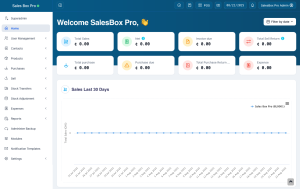
SalesBox Pro

Sandbox is a multipurpose HTML5 template with various layouts which will be a great solution for your business.

Contact Info

Moonshine St. 14/05
Light City, London

info@email.com
00 (123) 456 78 90

Learn More

Follow Us

Overview

SalesBox Pro is a smart POS and business operations platform tailored for industries such as food service, healthcare, and retail. It enables businesses to manage sales, inventory, expenses, customer data, and analytics in one intuitive solution.
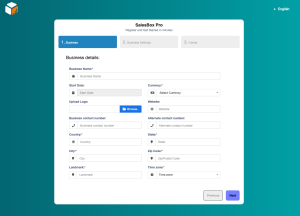
 

Getting Started

Follow these simple steps to get SalesBoxPro up and running.

  • 1.Create Your Account

    • Visit the SalesBox Pro website.

    • Click on the Sign Up button to register your business.

    • Provide the required details:

      • Business name

      • Contact information (email, phone number)

      • Preferred plan (Basic, Business, or Enterprise)

    • Verify your email address or phone number (confirmation may be required).

    • Log in to your new account via the dashboard.

2. Configure Your Business Profile

Once inside the dashboard, customize your account to fit your business operations:

  • Business Locations: Add one or multiple shop/branch addresses depending on your plan.

  • Users & Staff: Assign staff accounts with specific permissions (cashier, manager, admin).

  • Products/Services: Upload product names, SKUs, pricing, and categories. You can bulk upload for faster setup.

  • Payment Methods: Set up payment options (cash, card, or mobile money).

3. Inventory Setup

Managing stock is critical.

  • Enter product quantities and stock thresholds.

  • Enable low-stock alerts to receive notifications before items run out.

  • Categorize products by type (e.g., drinks, clothing, medicine) for easier tracking.


  • 4. Process Your First Sale

    Now you’re ready to make transactions:

    • Go to the Sales/Checkout tab.
    • Select the product or service your customer is purchasing.
    • Enter the quantity.
    • Choose the payment method (cash, card, mobile money).
    • Confirm and print/digitally issue a receipt.


    5. Track Expenses & Reports

    Beyond sales, you can track:

    • Recurring expenses (rent, salaries, utilities).

    • One-time expenses (repairs, upgrades).

    • Generate real-time analytics including revenue, top-selling items, and expense breakdowns.

System Requirement

System Requirements

Ensure your system meets these requirements for optimal performance.

Web App

Browser requirements

  • • Chrome (latest)
  • • Firefox (latest)
  • • Safari (latest)

Mobile App

Mobile platform support

  • • iOS 13+
  • • Android 10+
  • • Stable internet connection

Desktop App

Desktop platform support

  • • Windows 10+
  • • macOS Catalina+
  • • 4GB RAM recommended

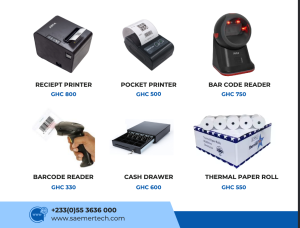
POS Hardware Prices

Annual subscriptions and setup fees are billed separately. The annual subscription covers access to the platform’s features for one year, while the setup fee is a one-time charge for configuring your system to your business needs

Troubleshooting

Solutions to common issues and where to get help.

Common Issues

Login Failed

Ensure your credentials are correct and your internet connection is stable.

App Crashes

Update to the latest version or reinstall the app.

Missing Data

Check user permissions and sync settings.

Support